A smaller SSD can be a perfectly valid clone target, but the number printed on the source drive is not the number that decides whether it will fit. The useful comparison is the source data that must be copied, plus the hidden Windows partitions and enough working headroom on the destination.
What I checked on this PC
The test PC was running Windows 11 Home 25H2, OS build 26200.8875. It had one 953.9 GiB NVMe drive using GPT, with Windows split across C and D. Both data volumes were protected by BitLocker.
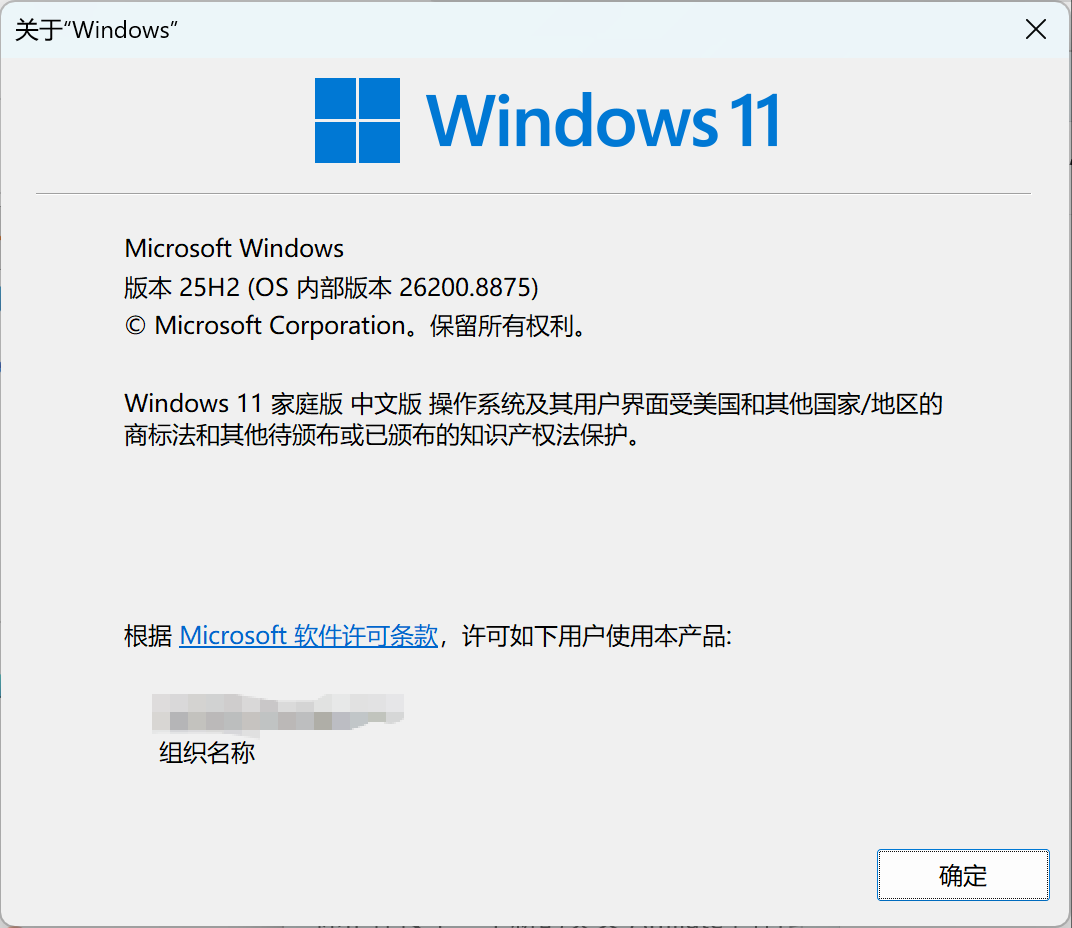
Observed on July 28, 2026. The screenshots document the pre-clone checks; they are not evidence of a completed migration.
1. Inventory physical disks and volumes separately
Open PowerShell as administrator and run these two read-only commands. The first tells you how many physical disks Windows sees. The second measures the lettered volumes and their free space.
Get-Disk | Select-Object Number,FriendlyName,BusType,PartitionStyle,OperationalStatus,@{Name="SizeGB";Expression={[Math]::Round($_.Size/1GB,1)}} | Format-Table -AutoSizeGet-Volume | Where-Object DriveLetter | Select-Object DriveLetter,FileSystem,HealthStatus,@{Name="SizeGB";Expression={[Math]::Round($_.Size/1GB,1)}},@{Name="FreeGB";Expression={[Math]::Round($_.SizeRemaining/1GB,1)}} | Format-Table -AutoSize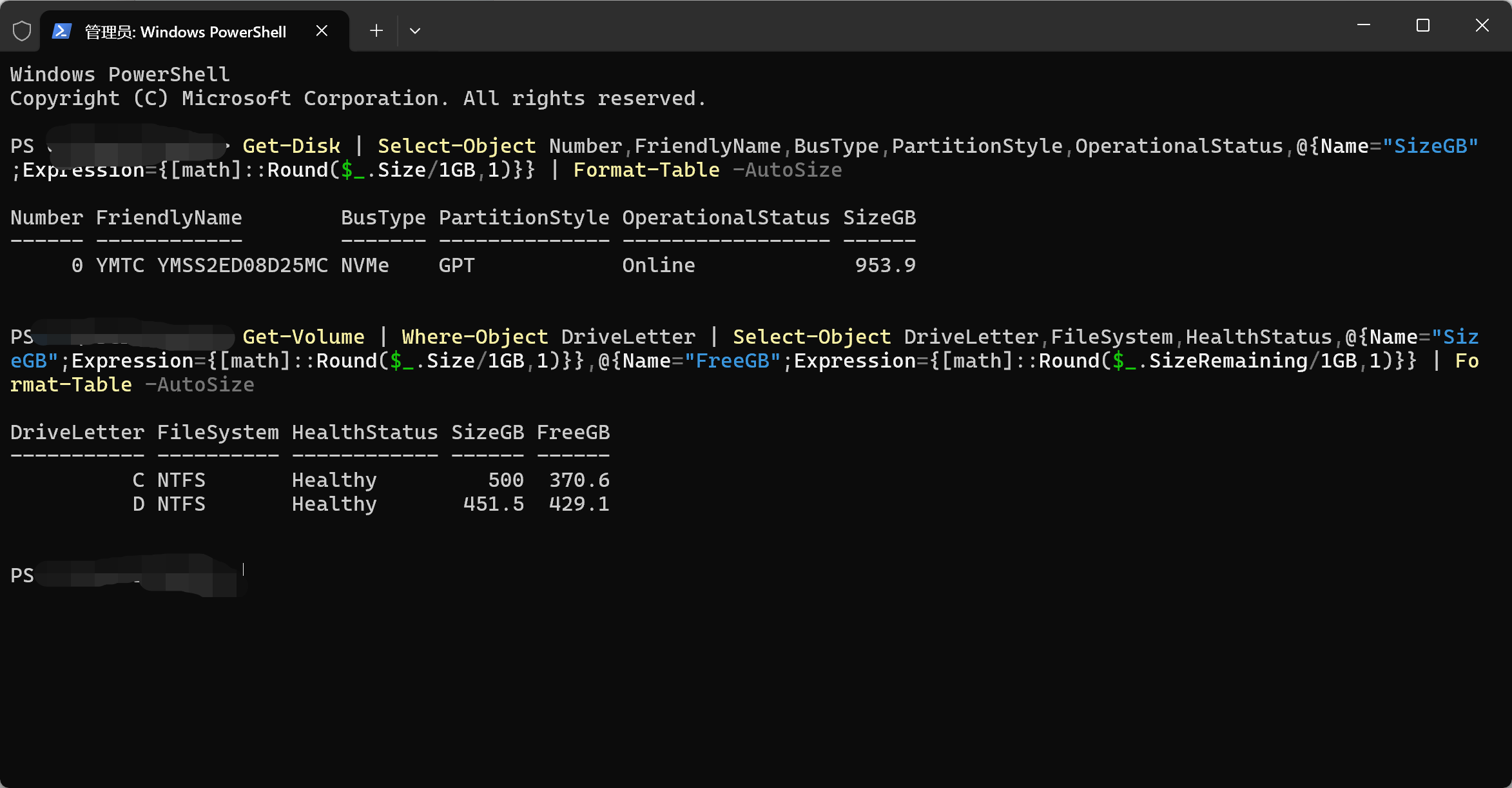
2. Calculate the space that is actually in use
Subtract free space from total space for every source volume that must be carried to the new SSD. On this PC, the visible calculation was:
| Volume | Total | Free | Used |
|---|---|---|---|
| C | 500.0 GB | 370.6 GB | 129.4 GB |
| D | 451.5 GB | 429.1 GB | 22.4 GB |
| Visible total | 951.5 GB | 799.7 GB | 151.8 GB |
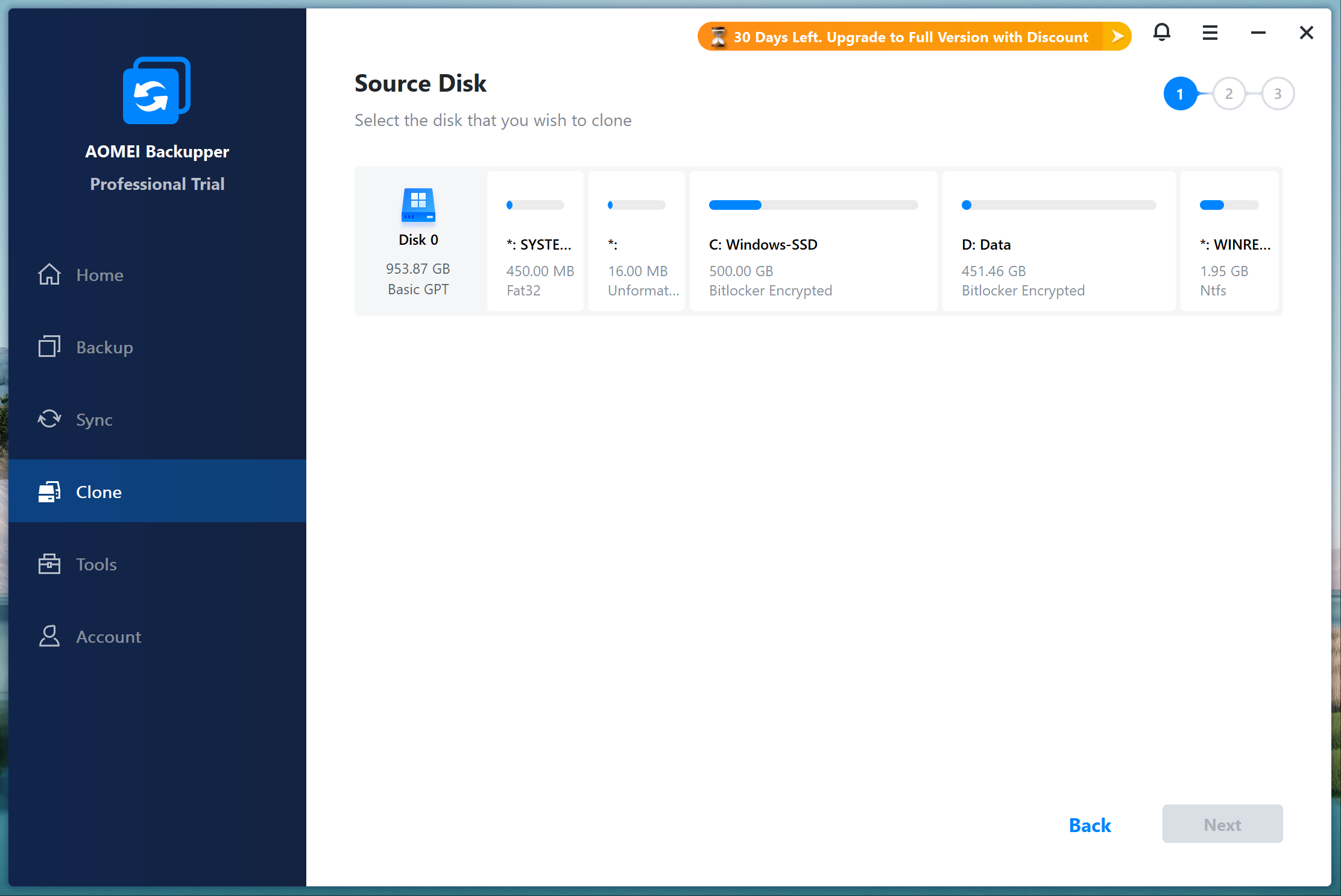
The visible data uses about 151.8 GB. The disk also contains a 450 MB EFI System Partition, a 16 MB Microsoft Reserved partition, and a 1.95 GB Windows Recovery partition. Those small partitions matter for booting and recovery even though they do not have drive letters.
Practical verdict: by capacity alone, this installation should fit comfortably on a nominal 500 GB or 512 GB SSD. That is still a provisional verdict: the target's real usable capacity, its existing partitions, and the clone tool's proposed layout must be checked before clicking Start.
3. Confirm GPT, UEFI, and the hidden partitions
The source disk reported GPT, and Windows System Information showed UEFI with Secure Boot enabled. Disk Management showed the EFI, C, D, and Recovery layout. A smaller target must preserve a bootable layout; copying only C would omit part of that structure.
If the destination is smaller than the source, the tool needs to resize the data partitions. This works only when the used data can fit inside the proposed destination partitions. A sector-by-sector clone is a different case because it attempts to copy unused sectors as well and commonly requires an equal-size or larger destination.
4. Check BitLocker before opening the clone tool
Run the following command and record the protection state for every source volume:
manage-bde -status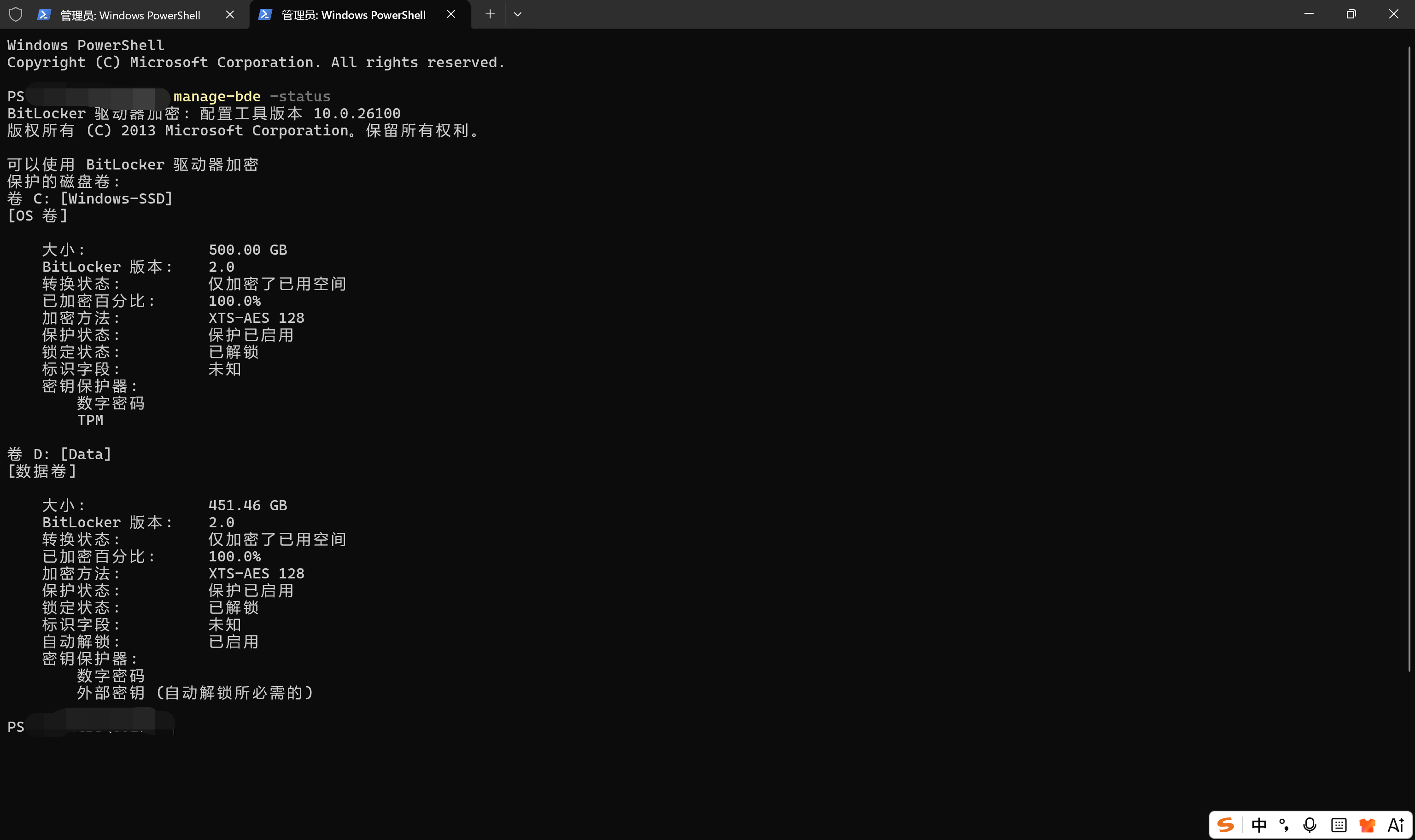
Save the recovery key somewhere separate from the source disk before making storage changes. Whether protection must be suspended or the volume decrypted depends on the exact cloning product, version, and workflow. Do not publish or send anyone a screenshot containing the recovery key.
5. Verify what the cloning software can actually see
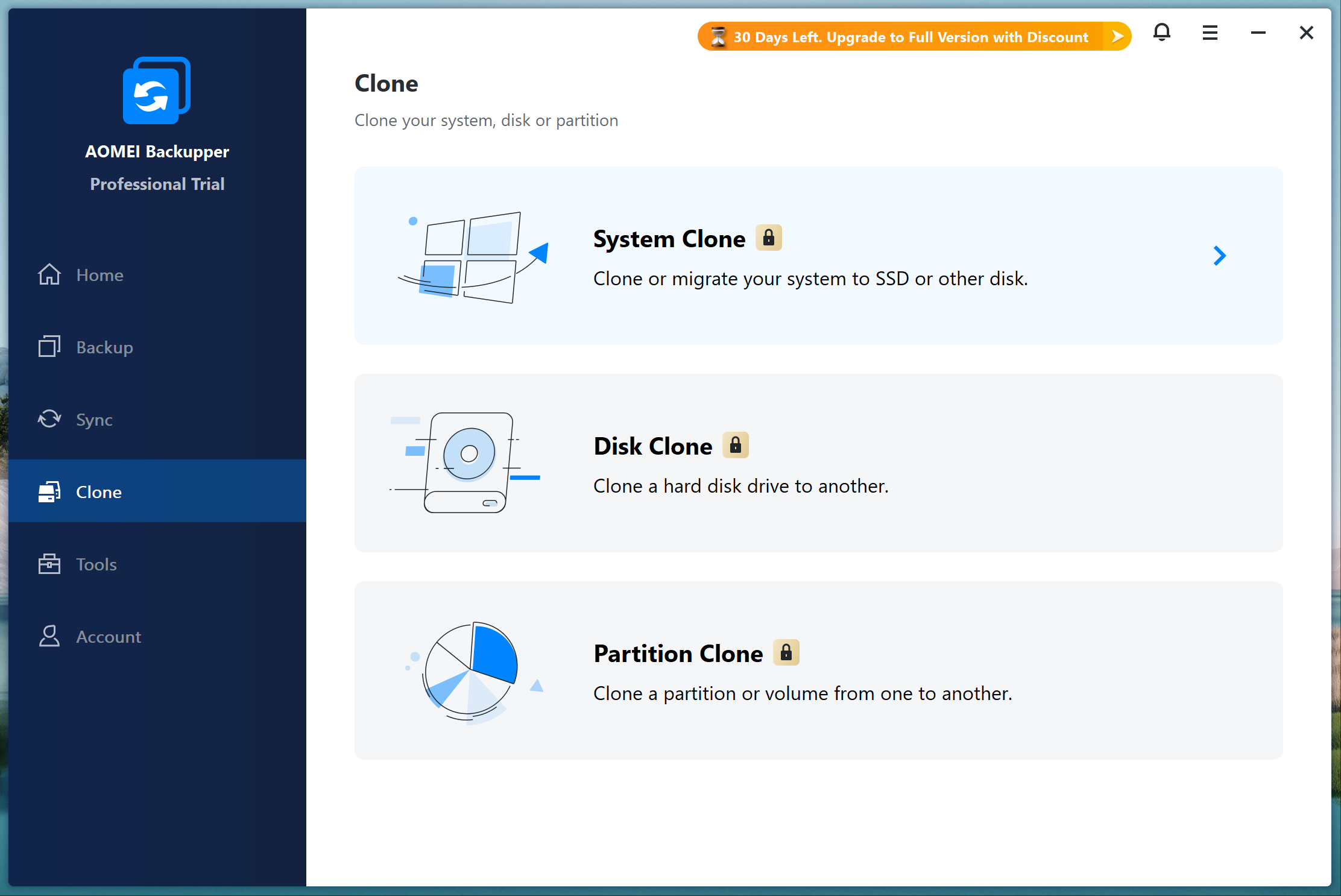
I used AOMEI Backupper Professional Trial 8.0.0 for this interface check. The trial label matters: it is not a purchased license, and the lock icons in the Clone screen show that licensing gates apply to these operations.
Opening Disk Clone correctly identified Disk 0 as a 953.87 GB Basic GPT disk and displayed its EFI, MSR, C, D, and recovery partitions. That confirms the software could read the source layout; it does not prove that a smaller destination will boot.
6. Use a go/no-go checklist before cloning
| Question | Result on this PC | Meaning |
|---|---|---|
| Is the source healthy and online? | Yes, in Windows' basic status | Necessary, but not a complete hardware health test |
| Does visible used data fit a 500/512 GB target? | Likely; about 151.8 GB was used | Capacity check passes with substantial headroom |
| Are GPT/UEFI and hidden partitions known? | Yes | The clone plan must preserve a bootable GPT layout |
| Is BitLocker state known? | Yes, enabled on C and D | Recovery keys and a product-specific BitLocker plan are required |
| Is a separate target SSD connected? | No | No target selection, erase warning, clone, or boot test was possible |
Do not proceed until the target appears as a second physical disk and you can identify it by model and capacity. If the tool proposes deleting or overwriting a disk, pause and compare that model number with the new SSD. Never choose a target based only on a drive letter.
Where this test stopped
This PC has only one physical SSD. I did not have a disposable second drive, so I did not run a clone, change the boot order, erase any partition, or validate Windows activation and BitLocker after boot. Those missing steps are exactly why this article reports a fit assessment, not a successful smaller-SSD migration.
Frequently asked questions
Can I clone a 1 TB drive to a 500 GB SSD?
Yes, when the data and required partitions fit within the target's usable capacity and the cloning method supports resizing. In this example, about 151.8 GB of visible data was in use, so a 500/512 GB target looks reasonable. A sector-by-sector clone may not allow it.
Should I add the free space from C and D together?
You can add their used space when both volumes will be included in a full-disk clone. First confirm that C and D are on the same physical disk, as they were here. If you plan to migrate only Windows, check exactly which partitions the chosen System Clone workflow includes.
Does the target need to be completely empty?
Most disk-clone workflows overwrite the destination layout. Treat every file on the target as disposable and back it up elsewhere before approving any erase warning.
Considering AOMEI Backupper for the clone?
Check the current license and feature details before buying. The screenshots above came from the Professional Trial; this article does not claim a completed clone.
Check AOMEI Backupper optionsAffiliate disclosure: RestorePath Lab may earn a commission if you buy through this link, at no additional cost to you.
Official references checked July 28, 2026: Microsoft Get-Disk documentation, Microsoft Get-Volume documentation, and Microsoft manage-bde status documentation.