A clone can reproduce a working Windows installation, but it also forces the source drive to read a large amount of data. Before you start, screen the source SSD for warning signs and decide whether cloning is still the safest next action.
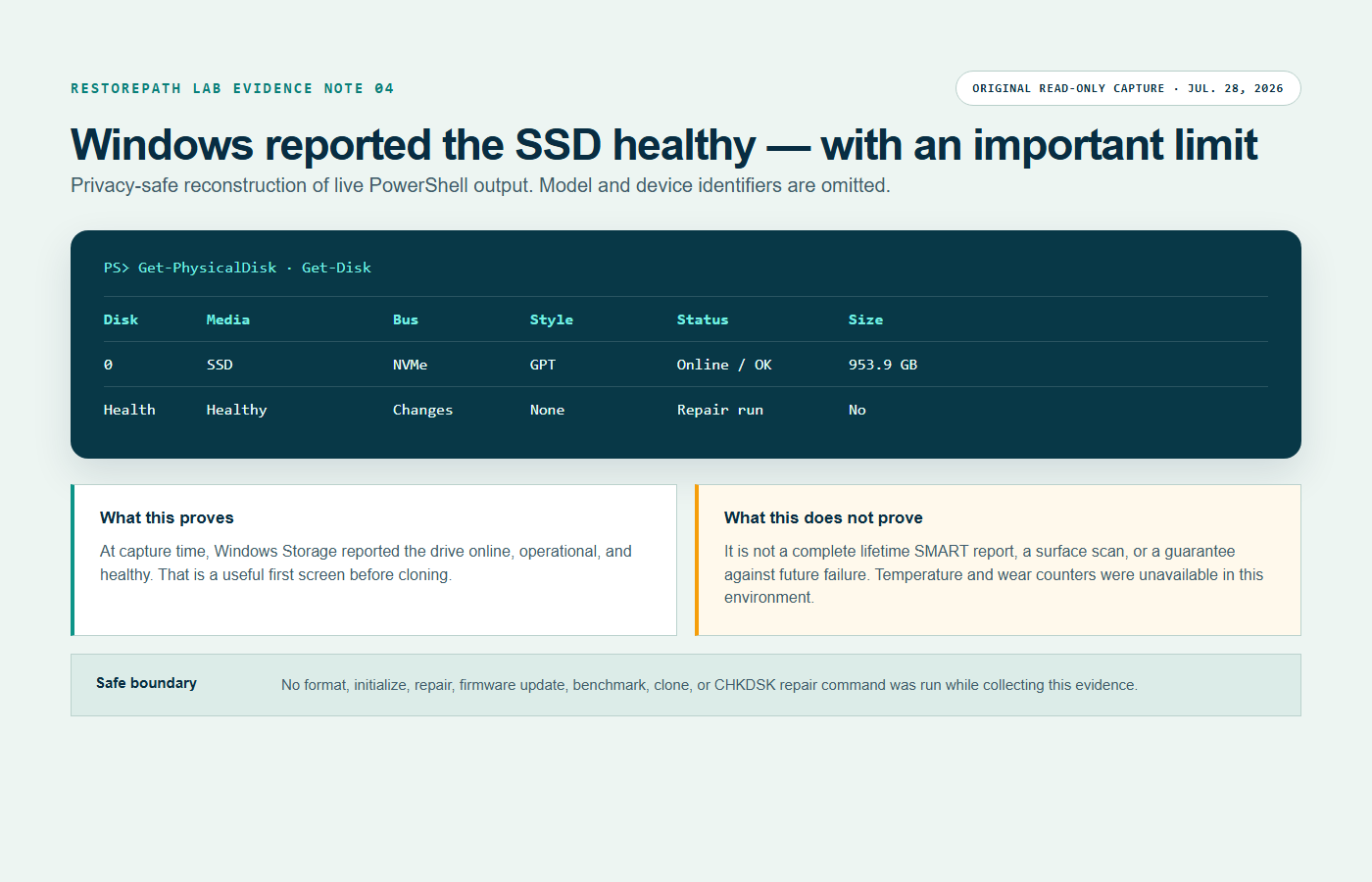
What this does not prove: a Healthy label is not a complete lifetime SMART report, a surface scan, or a guarantee against future failure.
1. Back up the files you cannot replace
Do not make the planned clone your only safety copy. Before a migration, copy irreplaceable documents, photos, project files, recovery keys, and license information to a different physical drive or an appropriate off-device backup. Open a few copied files to confirm the destination is readable.
If ordinary copying produces read errors or causes the SSD to disconnect, stop treating this as a routine migration. Record the symptoms and obtain a recovery assessment if the data matters.
2. Run the Windows read-only health screen
Right-click Start, choose Terminal (Admin) or Windows PowerShell (Admin), and run these two commands separately:
Get-PhysicalDisk | Select-Object FriendlyName, MediaType, HealthStatus, OperationalStatus, Size

Get-Disk | Select-Object Number, FriendlyName, BusType, PartitionStyle, OperationalStatus, HealthStatus, Size
These commands list information. They do not initialize, format, repair, or clone a drive. Match the source by capacity and connection type. Do not publish a screenshot that exposes an unnecessary serial number or unique device ID.
3. Interpret the result conservatively
| Result | Practical meaning before cloning |
|---|---|
| Healthy + OK/Online | A useful first-pass result. Continue the checks below; it is not a guarantee that every NAND cell or file is readable. |
| Warning, Unhealthy, or Predictive Failure | Do not begin a routine clone. Protect valuable files and investigate the hardware condition first. |
| Unknown | Windows did not provide a useful health conclusion. Use the SSD manufacturer's diagnostic utility or another documented SMART reader. |
| Lost Communication, Stale Metadata, or repeated disconnects | Check the enclosure, cable, slot, power, and event logs. Connection instability can corrupt or interrupt a clone. |
In our evidence capture, Windows reported Healthy and OK. That supports continuing a pre-clone inspection. It does not prove remaining life, temperature history, zero media errors, or future reliability.
4. Ask Windows for reliability counters
Windows can expose temperature, wear, power-on hours, and error counters when the drive, controller, and driver support them. Run:
Get-PhysicalDisk | Get-StorageReliabilityCounter |
  Select-Object DeviceId, Temperature, TemperatureMax, Wear,
    PowerOnHours, ReadErrorsTotal, ReadErrorsUncorrected,
    WriteErrorsTotal, WriteErrorsUncorrected
A blank value or access error is not a passing result. It means that this route did not provide the counter. In our recorded environment, the reliability-counter command was denied even though the basic disk status was available, so we did not invent the missing temperature or wear values.
If the counters are missing, use the utility published by the SSD manufacturer. Download it from the manufacturer's own site, confirm that it recognizes the exact drive, and record the SMART or health summary. Do not update firmware in the middle of a migration unless you have a separate verified backup and a specific reason to accept that risk.
5. Review recent storage errors
Open Event Viewer, expand Windows Logs, choose System, and use Filter Current Log. Look around the times when the PC froze, the drive disappeared, or a file failed to open. Repeated Disk, Ntfs, stornvme, or storahci warnings deserve investigation.
A single old event without current symptoms is not a diagnosis. Repeated recent I/O, reset, timeout, or bad-block events are more important than a green label shown at one moment.
6. Do not use a repair scan as your first health test
CHKDSK checks the file system, not the complete electronic health of an SSD. Microsoft documents that CHKDSK without repair parameters reports status, while /f, /r, /x, and related options can fix, dismount, or scan extensively. Those actions are not part of this pre-clone inspection.
chkdsk /f or chkdsk /r. Secure the most valuable readable data first. Repairing the file system can change the source and a full read can add stress.7. Make the clone-or-stop decision
- Continue with a normal clone: important files are backed up, Windows reports Healthy/OK, the drive remains connected, representative files open normally, and no recent repeated storage errors appear.
- Pause and troubleshoot: Windows reports Unknown, the vendor tool cannot read SMART data, the USB enclosure resets, or the event log contains repeated recent storage warnings.
- Stop routine cloning: the drive reports Warning/Unhealthy, disappears, produces read errors, becomes dramatically slower, or contains irreplaceable data that is not backed up.
8. Record the baseline before the clone
Save a short note containing the checked date, Windows health and operational status, bus type, partition style, capacity, manufacturer-tool result, recent error summary, backup location, and the exact destination SSD. This makes it easier to distinguish a pre-existing issue from a problem introduced by the enclosure, clone, or first boot.
What to check next
Health is only one part of migration readiness. Next, record the complete Windows partition layout, save the BitLocker recovery key, confirm the destination has enough usable capacity, and write down how you will boot from the new SSD without erasing the original.
Official references checked July 28, 2026: Microsoft Get-Disk documentation, Get-StorageReliabilityCounter documentation, CHKDSK command documentation, and Microsoft's disk-error troubleshooting checklist.