A BitLocker recovery screen does not automatically mean your files are gone. It means Windows needs the 48-digit recovery key that matches the encrypted drive.
If you are trying to understand what triggered the screen before searching accounts, start with the common reasons Windows asks for a BitLocker recovery key.
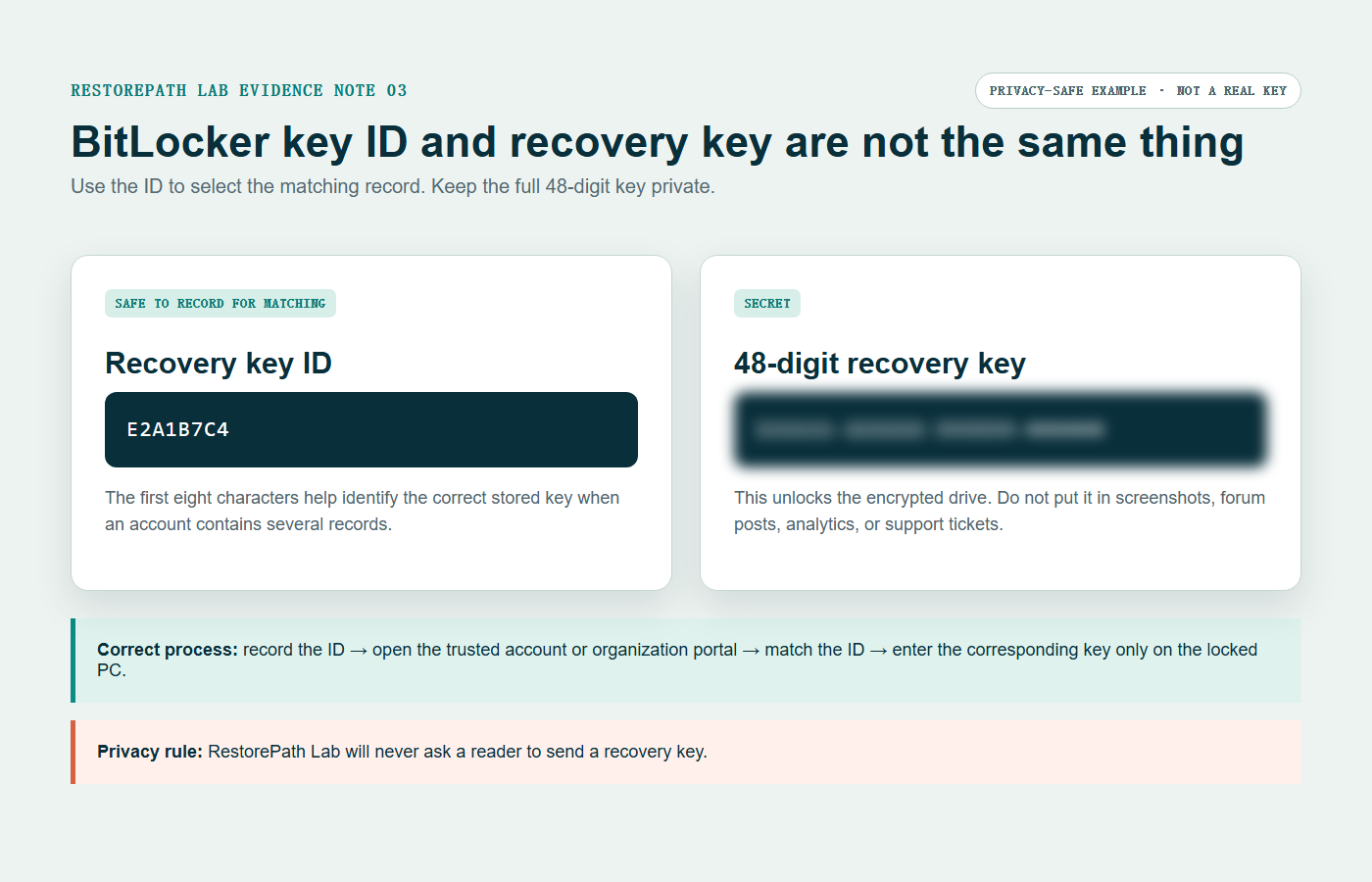
We checked the matching workflow against Microsoft's current recovery-key guidance on July 28, 2026. The guide deliberately stops short of asking readers to reveal a key: the only evidence needed for matching is the key ID shown by the locked PC.
1. Photograph only the key ID
Write down the first eight digits of the recovery key ID shown on screen. The ID is not the recovery key; it helps you match the correct key when an account contains several.
2. Check the likely account
- From another device, visit aka.ms/myrecoverykey and sign in with the Microsoft account used on the locked PC.
- If the PC ever used a work or school account, check that organization's device portal or contact its IT administrator.
- Look for a printed copy, a text file saved to a USB drive, or documentation from the person who set up the PC.
3. Match before entering
Compare the key ID on the recovery screen with the ID beside the stored recovery key. Do not guess between multiple keys.
4. Protect the key
Treat a recovery key like a password. Do not post it in a forum, send it in a screenshot, or include it in a support message. RestorePath Lab will never ask you to send it.
5. If no key exists
Microsoft cannot recreate a missing BitLocker key. Before accepting data loss, check every Microsoft account and any previous owner or organization that managed the device.
If you are considering a reset or clean installation, review what can still be backed up before reinstalling Windows 11. A reset is not a method for recovering files from a drive that remains locked.
Official reference: Microsoft's BitLocker recovery-key guide.